ceai-mcp-iss
Who’s in Space? — MCP server
A tiny Model Context Protocol server that lets an AI assistant answer “who is in space right now?” and “where is the ISS?” using the free, no-API-key Open Notify service.
Great as a first MCP demo: two live tools, zero credentials, always-changing data. It also ships a live web map of both crewed space stations (see below).
🌐 Live map (GitHub Pages): https://andresapitt.github.io/ceai-mcp-iss/
Tools
| Tool | Arguments | Returns |
|---|---|---|
whos_in_space |
none | People currently in orbit, grouped by spacecraft |
iss_location |
none | Live latitude/longitude of the ISS + a map link |
space_briefing |
none | A composed summary (people + ISS position) from both sources — the “customer briefing” pattern |
Setup
npm install
npm run build
Visual demo: the live ISS map 🗺️
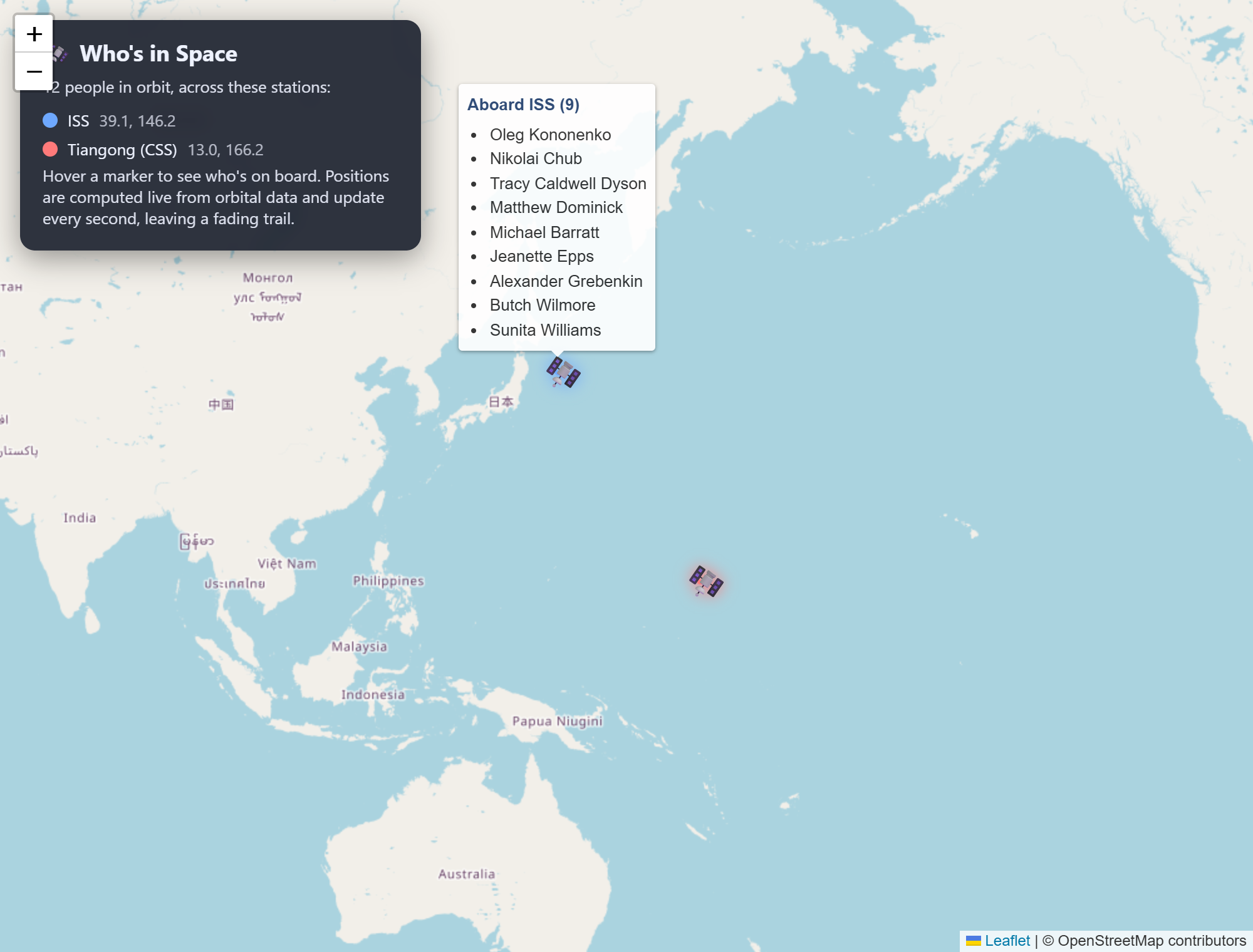
A web page that plots both crewed space stations — the ISS and China’s Tiangong (CSS) — on a world map. Hover a marker to see who’s on board. Each station has a coloured fading trail and the positions update every second.
npm run web
# then open http://localhost:3000
How it works:
web/server.mjsserves the page and proxies two free, no-key sources server-side (so the browser never hits a CORS wall): Open Notify (/api/astros— who is on each craft) and CelesTrak (/api/tle?id=…— each station’s orbital elements, cached for an hour).- The browser computes each station’s live ground position from its orbital elements using satellite.js, so the markers move smoothly every second without polling any API.
- Map is Leaflet + OpenStreetMap. All libraries load from a CDN; everything is
free and key-less. Set a different port with
PORT=8080 npm run web.
Host the map on GitHub Pages
GitHub Pages only serves static files over HTTPS — it can’t run the Node
proxy in web/server.mjs. So a static build lives in docs/ that talks
to the data sources directly:
- Positions are fetched straight from CelesTrak (HTTPS + open CORS), so the map stays fully live.
- Crew comes from a committed snapshot,
docs/crew.json, because Open Notify is HTTP-only and a browser on an HTTPS page blocks it as “mixed content”. Crew changes only every few months.
Enable it (one time): repo Settings → Pages → Build and deployment →
Source: Deploy from a branch → Branch: main, folder: /docs → Save.
After a minute the site is live at
https://andresapitt.github.io/ceai-mcp-iss/.
To refresh the crew snapshot (e.g. after a crew rotation):
curl -s http://api.open-notify.org/astros.json -o docs/crew.json
git commit -am "Update crew snapshot" && git push
The MCP server itself cannot run on Pages — it’s a stdio process an AI client launches, not a web page. Pages hosts only the visual map.
Run the demo (see the MCP tools working)
There are two ways to run it.
Option A — In your terminal (fastest, no external app)
npm run demo
This launches the server, discovers the tools, calls each one, and prints the
live results. Uses the small MCP client in demo.mjs. Great for a quick
“it works” check or a screen-share where you narrate each tool call.
(npm start is also available — it starts the server on stdio and waits for
raw JSON-RPC on stdin, for manual testing.)
Option B — In Claude Desktop (the real demo)
This is the version to present — you ask Claude a question and it calls your tool. See the next section for setup, then ask:
- “Who’s in space right now?”
- “Where is the ISS?”
- “Give me a space briefing”
Claude shows a “used tool” indicator and answers from the live data.
Presenting tips
- Run a query twice — the ISS coordinates change every time, proving it’s a real live tool and not the model guessing.
- Keep a terminal with
npm run demoopen as a backup in case Claude Desktop is slow to reconnect.
Use it in Claude Desktop
Add this to your claude_desktop_config.json
(Windows: %APPDATA%\Claude\claude_desktop_config.json):
{
  "mcpServers": {
    "whos-in-space": {
      "command": "node",
      "args": [
        "C:\\Users\\andre\\OneDrive - vStream\\Documents\\Andrés\\courses\\AI in Business\\Customer Engagement and AI\\projects\\mcp\\dist\\index.js"
      ]
    }
  }
}
Steps:
- Edit the config file above (on Windows, run
notepad "$env:APPDATA\Claude\claude_desktop_config.json"in PowerShell). Merge thewhos-in-spaceentry into any existingmcpServers— don’t delete what’s already there. - Fully quit Claude Desktop (File → Exit, not just closing the window) and reopen it, so it restarts the background process.
- Click the tools/plug icon in the chat box — you should see
whos-in-spacewith 3 tools. - Ask “Who’s in space right now?”
If the tools don’t appear: recheck the path (double backslashes \\) and make
sure npm run build has been run so dist\index.js exists.
Alternative: launch with npx (no dist path to hardcode)
After npm run build, you can let the client run the package by folder instead
of pointing at dist/index.js:
{
  "mcpServers": {
    "whos-in-space": {
      "command": "npx",
      "args": [
        "C:\\Users\\andre\\OneDrive - vStream\\Documents\\Andrés\\courses\\AI in Business\\Customer Engagement and AI\\projects\\mcp"
      ]
    }
  }
}
npx <folder> resolves the bin entry in package.json and runs it.
How it works
src/index.tscreates anMcpServer, registers two tools, and speaks the MCP protocol over stdio (stdout = protocol, stderr = logs).- Each tool does a single
fetchto Open Notify and formats the result as text. - No API key, no auth, no rate-limit signup.
License
MIT © 2026 Andrés Apitt